Add custom Buttons and Scripts to JDownloader
- 04/11/2015 11:55 AM (Updated: 08/07/2026 3:00 PM)
Add custom Buttons and Scripts to JDownloader
The Eventscripter can be used to write Scripts in JavaScript to customize your JDownloader.
Install- and activate the Eventscripter in the JDownloader Settings panel.
Adding Buttons that execute scripts when clicked
You can add buttons to almost all menus in JDownloader. Open the Menu Manager (Settings->User Interface->Menu Manager) and add a "EventScripter Trigger" Button.
For this example we are going to use a toolbar button.
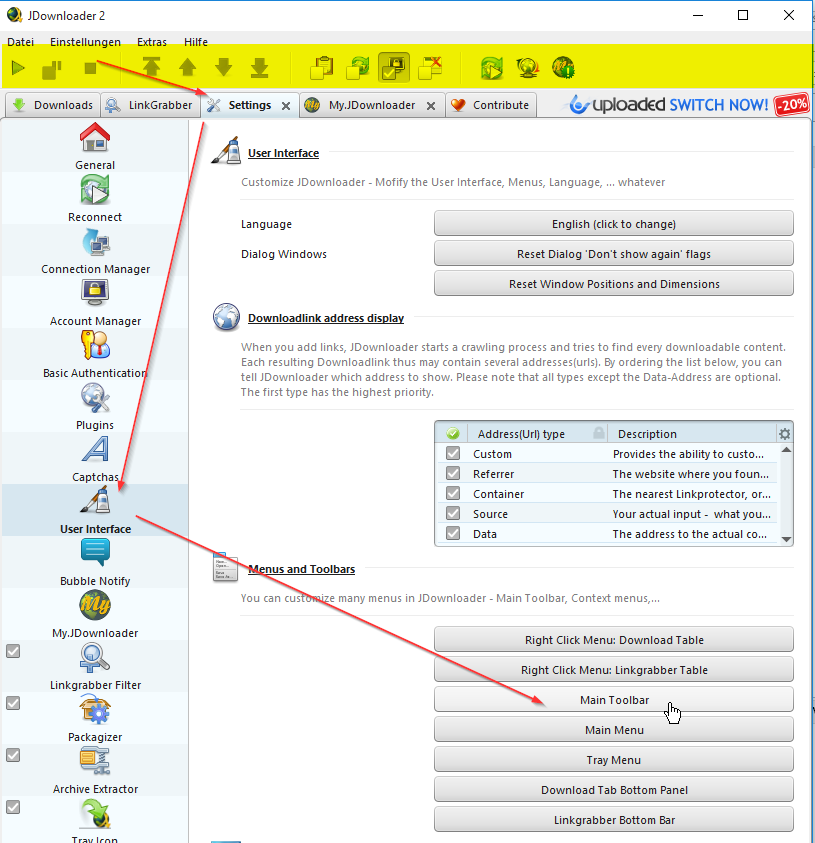
Alternatively right click anywhere in the free space in the main menu -> Open menu toolbar
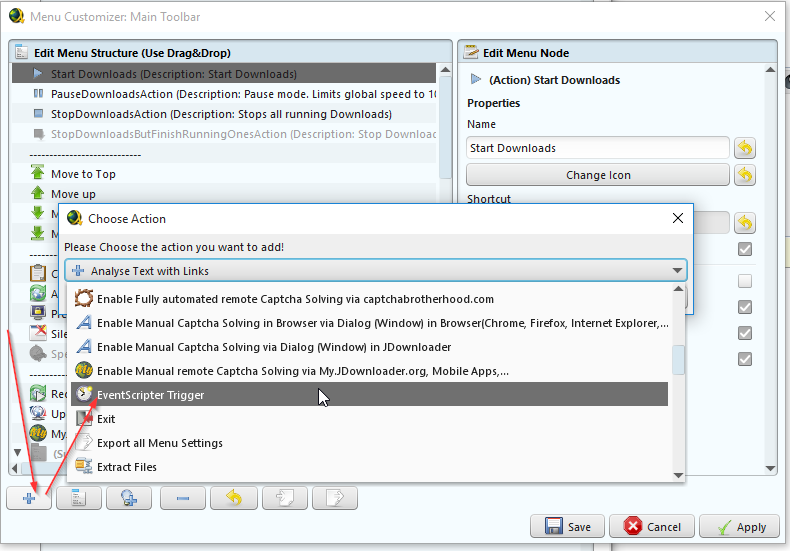
Choose a name for the action (1).
This step is important, because we will need this name later in the scripts.
For this example, we choose the name Toolbar Button Pressed
Moreover, you can choose an icon (2) and a shortcut (3) for the action.
Screenshot:
Click Save and the Button will appear in your menu.

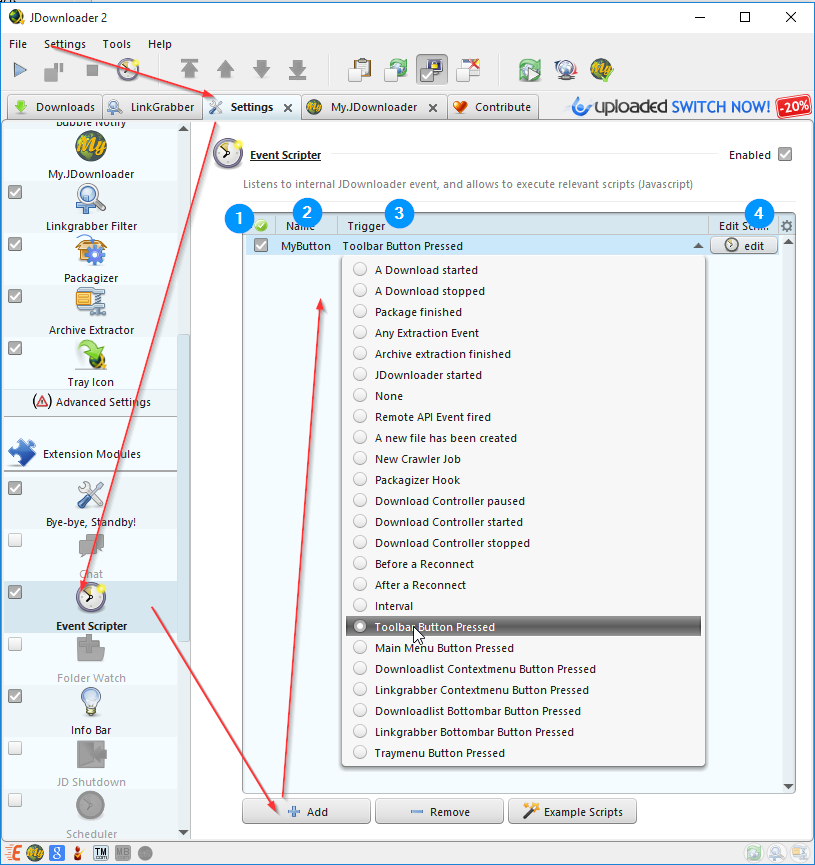
Switch to the EventScripter and create a new Script (Click Add)
- Switch to the EventScripter -> Click on "Add" to add a custom script.
- Enable the Script.
- Choose a Name (Whatever you want).
- Choose the Trigger.
We added as button to the Toolbar, so we choose the Toolbar Button Pressed Trigger. - Click the Edit Button
The help panel contains a documentation about the EventScripter API.
- Write a simple Script that shows an alert box.
To be sure that this script only is executed for the button we created, and not for other custom buttons in the same menu, we add the if (name == "Toolbar Button Pressed") { ... } statement.
Here is the code for such a simple test-script:if (name == "Toolbar Button Pressed"){alert("My Button pressed");}
Important: Without such an if-condition, any EventScripter action button you click will call all scripts! - Use the auto format button to format your script in a clean way.
- Use the Test Compile Button to check if you Script Syntax is correct.
- Click [Save] to save your script and exit the editor.
Screenshot:
Click your button and a dialog box will appear.
Screenshot:
Hard facts
- You can use any name you like but it is important that you use the chosen name in the "if name == ..." check.
- a toolbar/menu buttons can be linked to any number of eventscritper scripts.
- you can use LLMs like ChatGPT to help with scripts but you must give it the documentation otherwise it will try to use js commands that are not available in our script environment
Troubleshooting:
If nothing happens, check that:
- your script is enabled
- if the script should only work for a specifically named b utton, the name of your button and the name your scriupt is checking for match. In this example it's Toolbar Button Pressed .
All scripts disable themselves if there are any errors in the script. If this happens, check your script, re-enable it and troubleshoot it until it doesn't throw an exception anymore.